
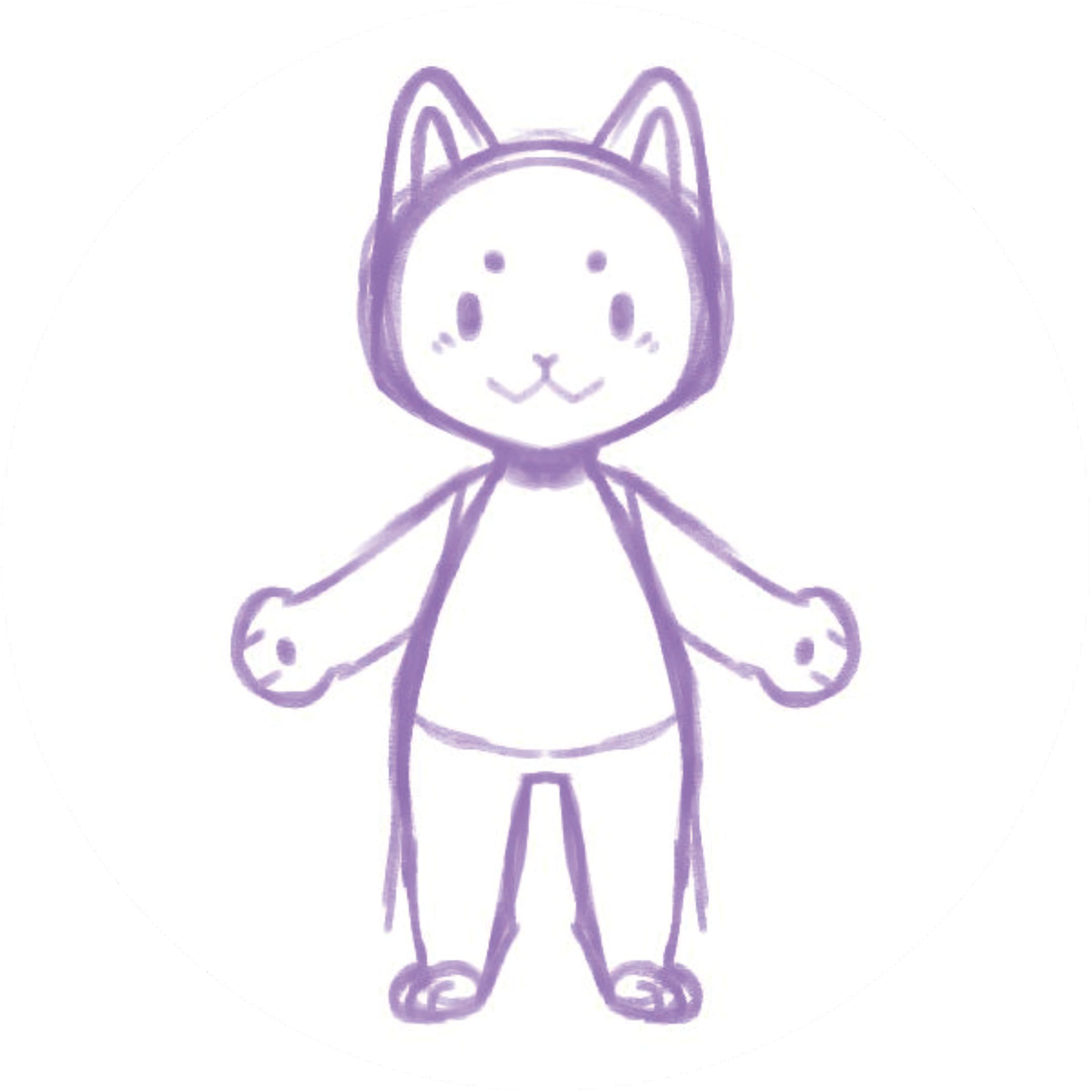
A drawing can say a lot while standing still. Adding movement gives you another way to show its personality: a walk can suggest confidence, while a dance can make a character feel playful.
You don't have to draw every frame to experiment with movement. Hasho takes a character image and builds a character you can preview with different motions. Here's a practical way to prepare your artwork and try it in Hasho Studio.
1. Pick a character to animate
Start with a character you have permission to use. It can be a drawing on paper or a digital illustration. For a first attempt, try an image where the character is easy to see and not crowded by other elements. Keep a copy of your original artwork so you can make adjustments and try again.
If you're photographing a drawing, use even light and check that shadows, hands, or the edge of the page don't hide parts of the character. Crop the photo so your character is clear while leaving room around it. These are starting suggestions, not strict rules: drawings vary, and some shapes may need a little experimentation.
2. Prepare the image
Save a copy of the image in one of the formats shown in Studio. If your image is too large to upload, export a smaller copy and keep the original file separately.
Before uploading, take a moment to look at the silhouette. Can you distinguish the character's body and limbs? If a pose doesn't look the way you expect later, you can return to the original and try a version with a clearer outline or more separation between overlapping parts.
3. Open Hasho Studio and upload your drawing
Go to Hasho Studio, sign in, and select your character image to upload. Studio access requires an eligible account and subscription, and an internet connection is needed to build a new character.
Hasho uploads the image and prepares a character. Keep the tab open while it works. Once the preview is ready, you can drag to rotate the view and scroll to zoom in for a closer look.
4. Try a motion and review the result
Choose one of the available animations to see your character move. Start with a simple motion, then try a more energetic one and compare how the drawing behaves. Watch the hands, feet, and places where parts overlap; these are useful areas to inspect when deciding whether you want to revise your image.
The result depends on the drawing. If a movement looks unusual, try a clearer version of the artwork and upload it again. Hasho can also flag a model for movement review, so take a look at the preview before using the result in a project.
5. Choose where the character will go
Think about what you want to make next. A short motion could add personality to an illustration or become part of a larger creative project. If you're planning an interactive website character or a workshop, describe your setup to the team so they can help you determine which workflow and formats fit.
Hasho offers different workflows, and available export formats depend on the edition. Ask about the format you need before designing a project around it.
Frequently asked questions
Do I need animation experience?
No animation experience is required to start with a drawing and try the available motions. Reviewing the result and experimenting with your artwork can help you find a look you like.
Can I use a drawing made on paper?
Yes. Take a clear photo and upload it as a supported image file. You can also start with a digital character image.
Does every drawing animate perfectly?
Results can vary with the artwork and motion. Preview the character, review the moving parts, and try adjusting the source image if needed.
Ready to try? Visit Hasho Studio or contact the Hasho team to discuss your project.
